


Too busy for parental controls? Think again


MANILA, Philippines – Whether you’re setting up a new device or configuring an existing one, parental controls are probably much easier to turn on than you think.
Parental controls aren’t limited to one device, one app, or one type of internet connection. Most major platforms (smartphones, gaming devices, and applications) already have built-in tools to manage screen time, purchases, communication, content, and online interactions.
And no, you don’t need to be a tech expert.
In most cases, you just need to know where to look.
Start with their phone
Android
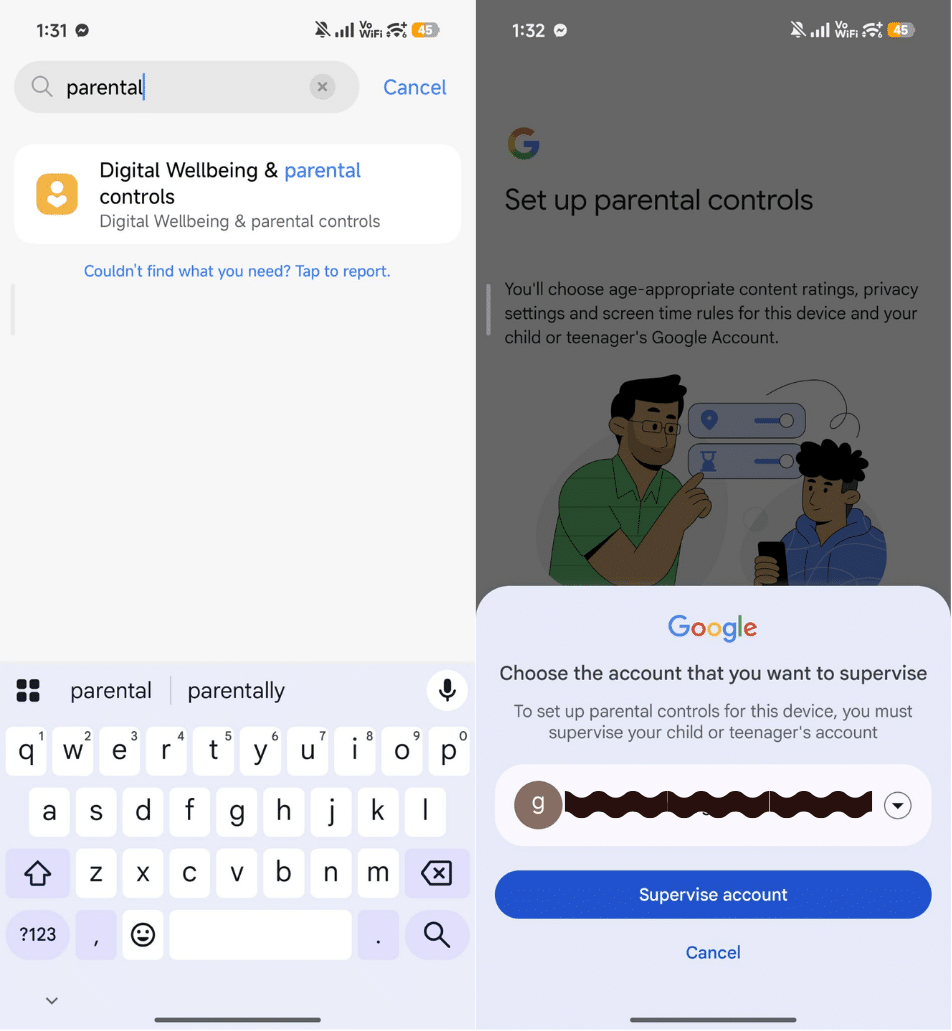
On Android phones and tablets, parents can use the Google Family Link application to manage a child’s account, screen time, app access, downloads, and some content restrictions.
How to: Search “Family Link” in Settings or the Google Play Store, set it up, then follow the prompts to connect your child’s account.
That’s it. Google basically walks you through it.
Apple
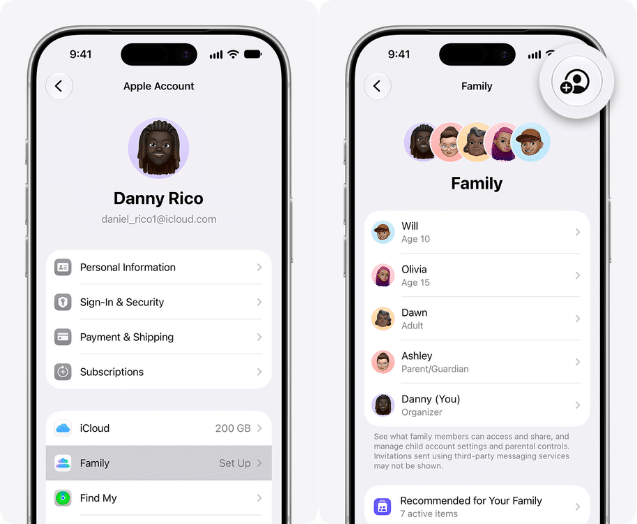
Apple has Screen Time and Family Sharing, which allow parents to manage app usage, purchases, communication limits, web content, and downtime across iPhone and iPad.
How to: Go to Settings → Family → Screen Time, select your child’s account, and configure the restrictions you want.
Again, it’s mostly a matter of following the menu.
Don’t forget their gaming consoles
Sony PlayStation / PS5
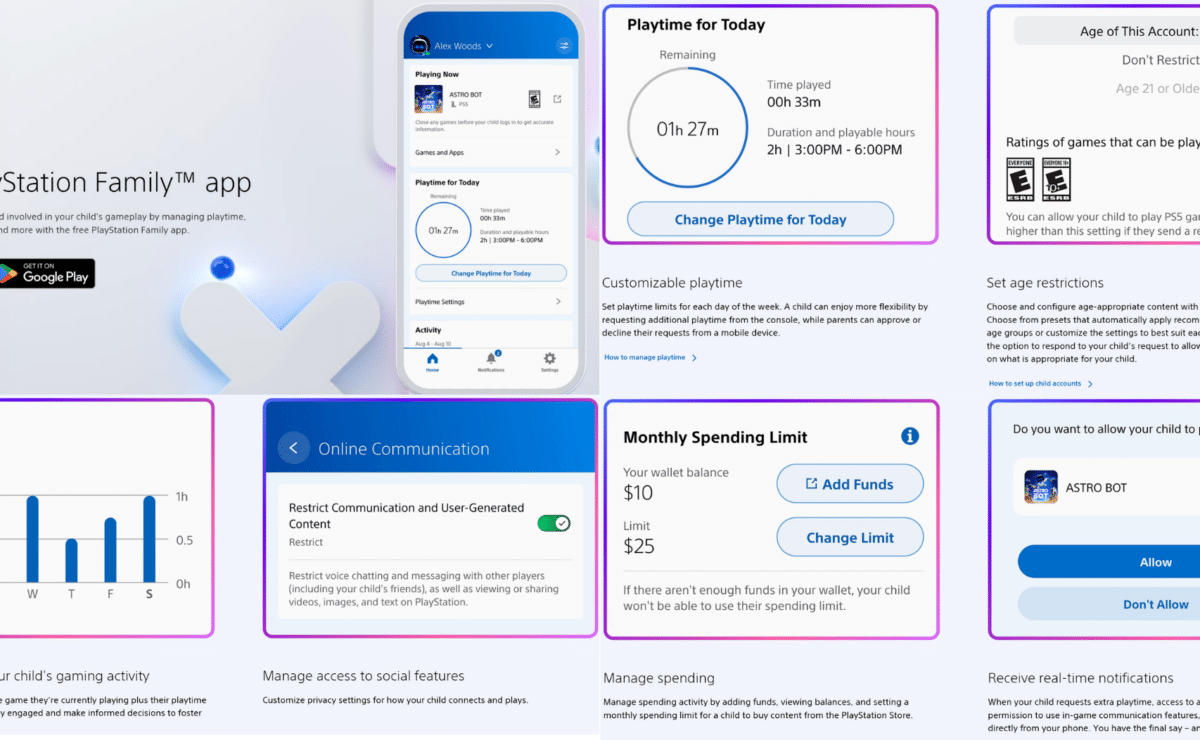
The PS5 has built-in Family Management controls. Parents can restrict games based on age ratings, manage playtime, control communication features, and limit spending.
How to: Go to Settings → Family and Parental Controls → Family Management and follow the setup instructions.
You can also manage many of these settings through your PlayStation account application.
Nintendo Switch
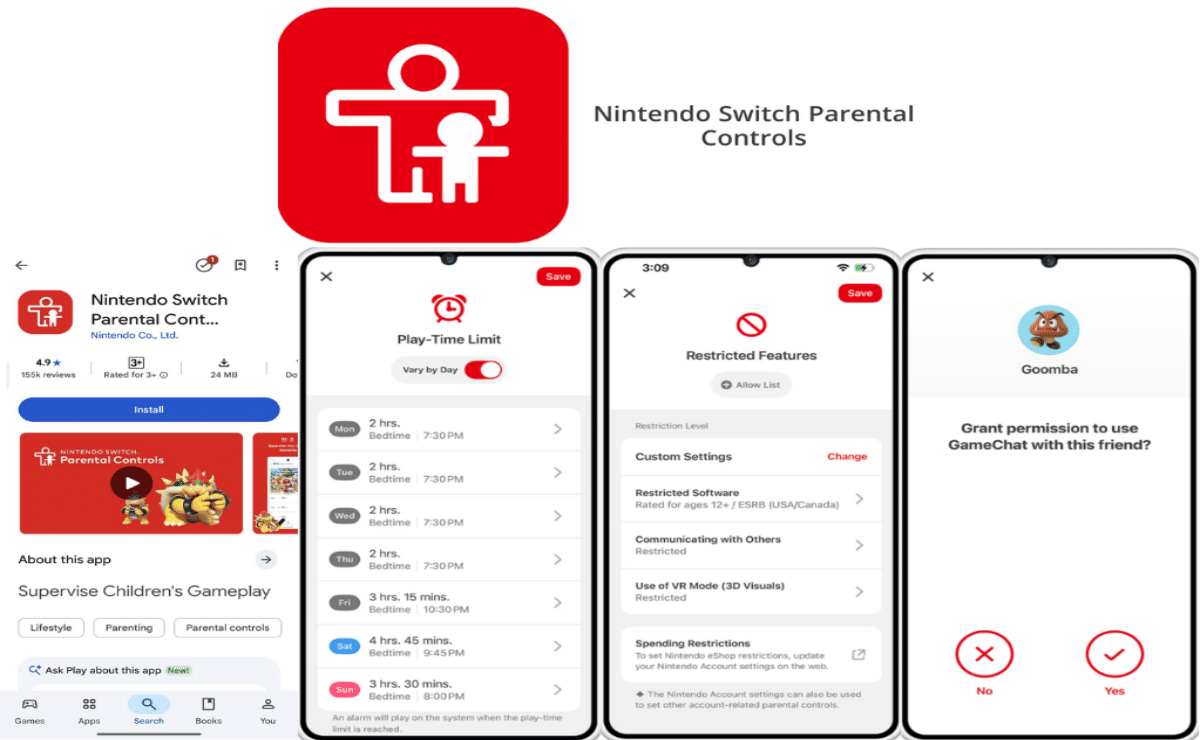
Nintendo offers parental controls through the Nintendo Switch Parental Controls app. Parents can monitor playtime and set restrictions around games, communication, and other features.
How to: Download the Nintendo Switch Parental Controls app, link it to the console, and follow the setup process.
The app is specifically designed so parents can manage the console without having to dig through complicated settings.
What about the PC?
For PCs, don’t focus only on the games themselves. Start with the computer’s general settings.
Windows has built-in family and account settings that can help parents manage screen time, apps, purchases, and what a child account can access or download.
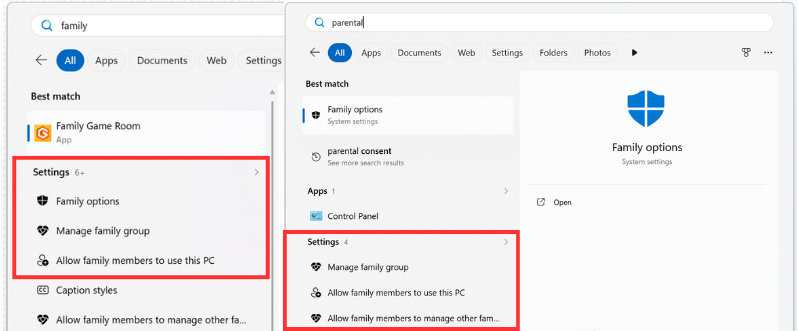
Furthermore, remember that many games are downloaded through separate platforms, such as Steam, Epic Games Store, and other game launchers. These services may have their own family, privacy, purchase, or content settings, so it’s worth checking those too.
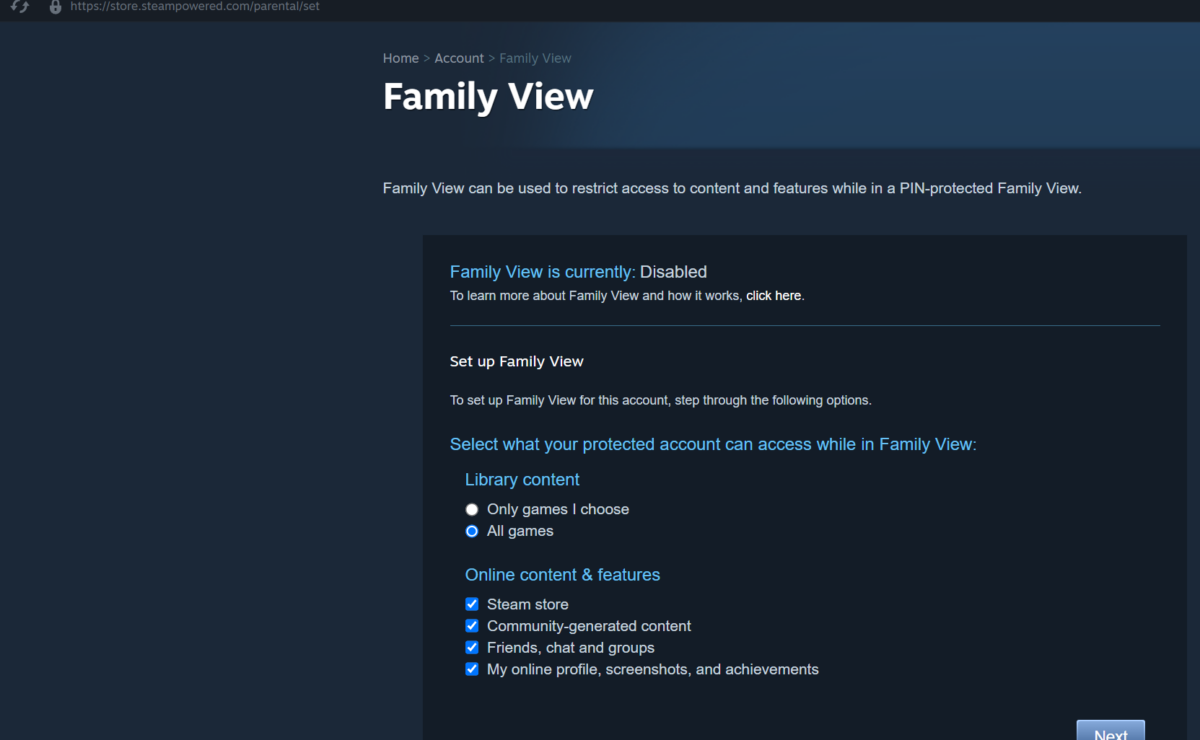
The idea is simple: don’t just control the PC. Check the places your child uses to download and play games as well.
Still Can’t Find the Settings?
Search for it. Literally.
Open the device’s Settings and type “parental controls,” “family,” “screen time,” or “child.” On many devices, the search function will take you directly to the relevant settings.
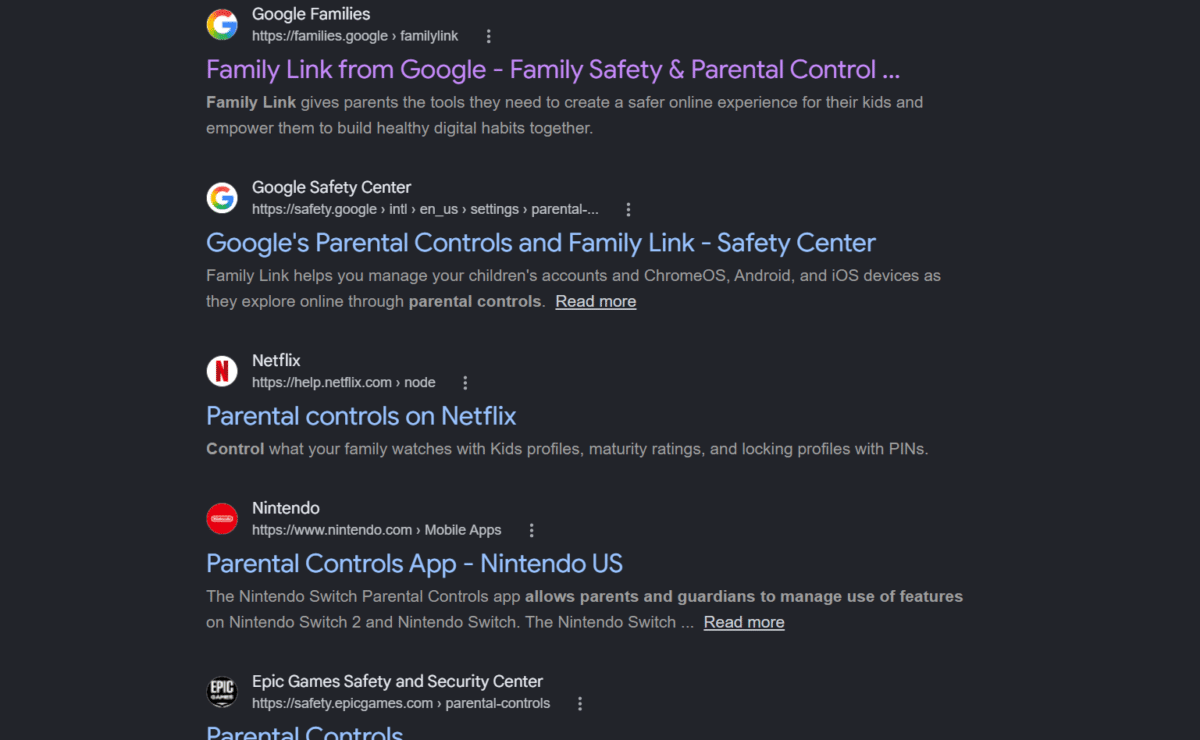
And if the device’s built-in search isn’t helpful, Google is sitting right there.
The real problem isn’t the technology
The bigger problem isn’t that parental controls are difficult. It’s that many parents simply don’t know they exist, don’t know what they can do, or haven’t taken a few minutes to set them up.
And that’s understandable. Parents are busy. Technology changes constantly. Nobody expects you to memorize every setting on every device your child owns.
But there’s a difference between not knowing how and not bothering to learn.
You don’t need advanced technical skills to protect your child’s online experience. You need a little digital literacy, a few minutes of patience, and the willingness to search for the answer.
Because if your teenager can figure out how to create three gaming accounts, join five Discord servers, customize their character, install a new game, and somehow spend ₱2,000 on something you didn’t know existed…
You can probably find the parental controls.
And yes, they’re probably going to hate this article.
RELATED STORY: The Marcos family has a knack for banning video games
Parents still have a say
With all the debate about how technology is influencing our kids, we also have to remember something important: we, as adults, still have control.
We can decide what devices they use, what settings are enabled, how much time they spend online, what they can access, and what boundaries are in place.
Technology may be changing faster than ever, but being a parent doesn’t mean you have to be powerless in front of it.
Sometimes, it really is just a few clicks.
RELATED STORY: TikTok rolls out AI controls and a family guide


